Setup Swagger in ASP.NET Core Web API Project (.NET 10)
Learn how to configure Swagger (OpenAPI) in an ASP.NET Core Web API (.NET 10) project, customize API documentation, add XML comments, JWT authentication, and improve the developer experience.
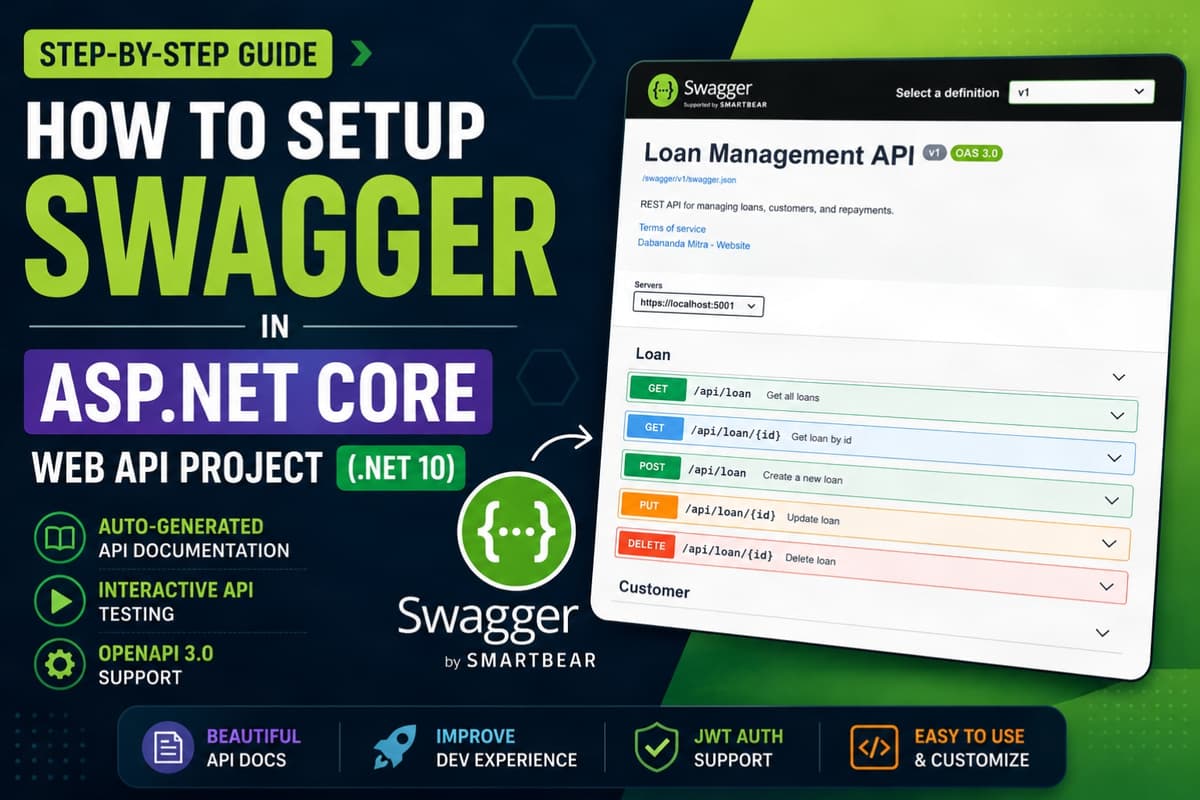
When building RESTful APIs, having interactive and well-documented API documentation is essential. Instead of manually documenting endpoints, Swagger automatically generates API documentation from your source code and provides an interactive UI to test your APIs directly from the browser.
ASP.NET Core has first-class support for OpenAPI, making Swagger integration straightforward.
In this guide, you'll learn how to configure Swagger in an ASP.NET Core Web API (.NET 10) project and customize it for a professional development experience.
What is Swagger?
Swagger is a collection of tools built around the OpenAPI Specification (OAS).
It helps developers:
- Generate API documentation automatically
- Test API endpoints without external tools
- Understand request and response models
- Share API documentation with frontend and mobile developers
- Generate API clients for different programming languages
Today, Swagger has become the standard documentation solution for REST APIs.
Prerequisites
- .NET 10 SDK
- ASP.NET Core Web API project
Step 1: Create a New ASP.NET Core Web API Project
If you don't already have a project, create one.
dotnet new webapi -n DemoApi
Navigate into the project.
cd DemoApi
Step 2: Install Swagger Package
ASP.NET Core no longer includes Swagger by default.
Install the official package.
dotnet add package Swashbuckle.AspNetCore
This package includes:
- Swagger generator
- Swagger UI
- OpenAPI support
Step 3: Register Swagger Services
Open Program.cs.
Register the required services.
builder.Services.AddEndpointsApiExplorer();

builder.Services.AddSwaggerGen();
Your service registration should look like:
var builder = WebApplication.CreateBuilder(args);

builder.Services.AddControllers();

builder.Services.AddEndpointsApiExplorer();

builder.Services.AddSwaggerGen();
Step 4: Enable Swagger Middleware
After building the application, enable Swagger.
var app = builder.Build();

app.UseSwagger();

app.UseSwaggerUI();

app.MapControllers();

app.Run();
Step 5: Run the Application
Run the application.
dotnet run
Open your browser.
https://localhost:5001/swagger
or
https://localhost:7000/swagger
Depending on your launch profile.
You'll see the Swagger UI with all your API endpoints.
Step 6: Customize API Information
Instead of using the default configuration, provide API metadata.
using Microsoft.OpenApi.Models;

builder.Services.AddSwaggerGen(options =>
{
    options.SwaggerDoc("v1", new OpenApiInfo
    {
        Title = "Loan Management API",
        Version = "v1",
        Description = "REST API for Loan Management System",
        Contact = new OpenApiContact
        {
            Name = "Dabananda Mitra",
            Email = "your-email@example.com"
        }
    });
});
The Swagger UI now displays your API title and description.
Step 7: Enable XML Documentation
Swagger can display descriptions from your XML comments.
First, enable XML documentation generation.
Open your .csproj file.
<PropertyGroup>
    <GenerateDocumentationFile>true</GenerateDocumentationFile>
    <NoWarn>$(NoWarn);1591</NoWarn>
</PropertyGroup>
Then update Swagger.
using System.Reflection;

builder.Services.AddSwaggerGen(options =>
{
    var xmlFilename = $"{Assembly.GetExecutingAssembly().GetName().Name}.xml";

    options.IncludeXmlComments(
        Path.Combine(AppContext.BaseDirectory, xmlFilename));
});
Now document your controller.
/// <summary>
/// Returns all customers.
/// </summary>
/// <returns>List of customers.</returns>
[HttpGet]
public IActionResult Get()
{
    return Ok();
}
Swagger automatically displays these comments.
Step 8: Group Endpoints
Swagger groups endpoints using controller names by default.
For better organization, use tags.
[ApiController]
[Route("api/[controller]")]
[Tags("Customer Management")]
public class CustomerController : ControllerBase
{
}
This improves readability for larger APIs.
Step 9: Add Example Response Types
Document expected responses.
[ProducesResponseType(StatusCodes.Status200OK)]
[ProducesResponseType(StatusCodes.Status404NotFound)]
[ProducesResponseType(StatusCodes.Status500InternalServerError)]
Example:
[HttpGet("{id}")]
[ProducesResponseType(StatusCodes.Status200OK)]
[ProducesResponseType(StatusCodes.Status404NotFound)]
public IActionResult GetCustomer(int id)
{
    ...
}
Swagger displays all possible responses.
Step 10: Add Request and Response Descriptions
/// <summary>
/// Creates a new customer.
/// </summary>
/// <param name="request">Customer information.</param>
/// <returns>Created customer.</returns>
[HttpPost]
public IActionResult Create(CustomerRequest request)
{
    ...
}
This information appears in Swagger UI.
Step 11: Enable JWT Authentication in Swagger
If your API uses JWT authentication, configure Swagger so you can authorize requests.
using Microsoft.OpenApi.Models;

builder.Services.AddSwaggerGen(options =>
{
    options.AddSecurityDefinition("Bearer", new OpenApiSecurityScheme
    {
        Description = "Enter JWT token",
        Name = "Authorization",
        In = ParameterLocation.Header,
        Type = SecuritySchemeType.Http,
        Scheme = "bearer",
        BearerFormat = "JWT"
    });

    options.AddSecurityRequirement(new OpenApiSecurityRequirement
    {
        {
            new OpenApiSecurityScheme
            {
                Reference = new OpenApiReference
                {
                    Id = "Bearer",
                    Type = ReferenceType.SecurityScheme
                }
            },
            Array.Empty<string>()
        }
    });
});
Swagger now displays an Authorize button.
After logging in and obtaining a JWT token, click Authorize and enter:
Bearer your-jwt-token
Swagger automatically sends the token with every request.
Step 12: Display Enum Values Properly
Enums often appear as integers.
You can improve readability.
builder.Services.AddControllers()
    .AddJsonOptions(options =>
    {
        options.JsonSerializerOptions.Converters.Add(
            new JsonStringEnumConverter());
    });
Now Swagger displays enum names instead of numbers.
Step 13: Hide Endpoints
Hide internal endpoints from Swagger.
[ApiExplorerSettings(IgnoreApi = true)]
public IActionResult InternalEndpoint()
{
    ...
}
The endpoint remains functional but doesn't appear in Swagger.
Step 14: Change Swagger Route
Instead of:
/swagger
Use the application root.
app.UseSwaggerUI(options =>
{
    options.SwaggerEndpoint("/swagger/v1/swagger.json", "Loan API v1");

    options.RoutePrefix = string.Empty;
});
Now Swagger opens at:
https://localhost:5001/
Step 15: Enable Swagger Only in Development
It's common to disable Swagger in production.
if (app.Environment.IsDevelopment())
{
    app.UseSwagger();

    app.UseSwaggerUI();
}
This prevents exposing API documentation publicly.
Example Program.cs
using Microsoft.OpenApi.Models;

var builder = WebApplication.CreateBuilder(args);

builder.Services.AddControllers();

builder.Services.AddEndpointsApiExplorer();

builder.Services.AddSwaggerGen(options =>
{
    options.SwaggerDoc("v1", new OpenApiInfo
    {
        Title = "Loan Management API",
        Version = "v1",
        Description = "REST API for Loan Management System"
    });
});

var app = builder.Build();

if (app.Environment.IsDevelopment())
{
    app.UseSwagger();

    app.UseSwaggerUI();
}

app.UseHttpsRedirection();

app.UseAuthorization();

app.MapControllers();

app.Run();
Best Practices
- Keep Swagger enabled only in development unless public API documentation is required.
- Write XML documentation comments for all public endpoints.
- Document request and response models.
- Add response status codes using
ProducesResponseType. - Configure JWT authentication if your API is secured.
- Use meaningful API titles, descriptions, and version numbers.
- Organize endpoints using tags for larger projects.
- Hide internal or administrative endpoints from Swagger.
Conclusion
Swagger is an indispensable tool for modern API development. It provides interactive documentation, simplifies testing, and improves collaboration between backend, frontend, mobile, and third-party developers.
With just a few lines of configuration, your ASP.NET Core Web API gains professional, interactive API documentation that stays synchronized with your codebase.
As your API evolves, Swagger scales with it, making it easier to maintain accurate documentation and provide an excellent developer experience.
Share this article

Dabananda Mitra
Software Engineer specializing in scalable backend systems and minimal, effective API design.
Comments
Loading comments...
More Writings
Top 500 .NET Interview Questions | Complete Preparation Guide
Preparing for a .NET developer interview? I collected 500 unique interview questions covering the most important areas of the .NET ecosystem. This is a useful revision resource for freshers and experienced .NET developers preparing for technical interviews. Save it, practice the questions category by category, and use it as a structured roadmap for your .NET interview preparation.
Read Article →.NETProject Template: ASP.NET Core Web Api Modular Monolith
Tired of doing the starting configuration again and again for new projects? Here is the solution. Use this Modular Monolith ASP.NET Core Web Api starting template and directly jump into main code.
Read Article →.NETList vs IEnumerable vs IQueryable in ASP.NET Core
Learn the differences between List, IEnumerable, and IQueryable in ASP.NET Core. Understand when to use each, common misconceptions, performance considerations, and how to answer this popular .NET interview question.
Read Article →