Serilog: Setup Serilog in ASP.NET Core Web API Project
A step-by-step guide to configuring Serilog in an ASP.NET Core Web API project with console logging, file logging, structured logging, and request logging.
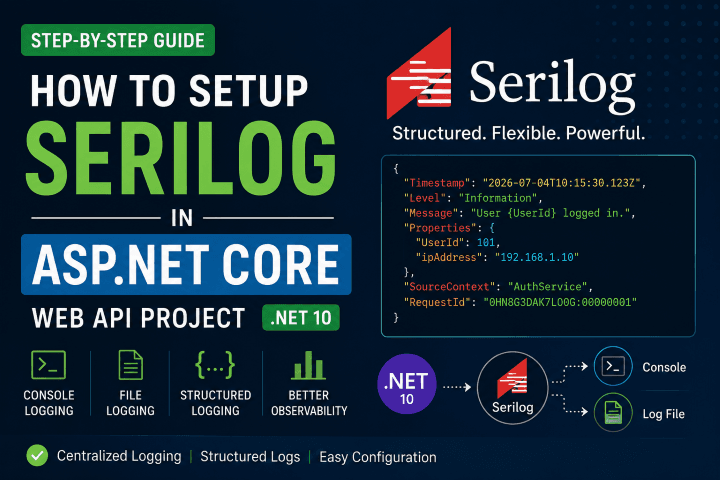
Logging is one of the most important aspects of any production application. A good logging strategy helps developers troubleshoot issues, monitor application behavior, and diagnose production problems efficiently.
The default logging provider in ASP.NET Core is sufficient for many scenarios, but Serilog provides a much more powerful and structured logging experience.
In this guide, you'll learn how to integrate Serilog into an ASP.NET Core Web API project and configure it for both console and file logging.
Why Serilog?
Serilog is a popular structured logging library for .NET that offers:
- Structured logging
- Multiple logging sinks (Console, File, SQL Server, Seq, Elasticsearch, Azure, etc.)
- High performance
- Rich diagnostic information
- Easy integration with ASP.NET Core
- Configuration through
appsettings.json
Instead of logging plain text, Serilog stores structured data that can be searched and filtered easily.
For example:
Instead of
_logger.LogInformation($"User {userId} logged in.");
Use structured logging:
_logger.LogInformation("User {UserId} logged in.", userId);
Internally Serilog stores:
{
    "UserId": 101
}
This makes searching logs significantly easier.
Prerequisites
- .NET 10 SDK
- ASP.NET Core Web API project
- Basic knowledge of dependency injection
Step 1: Install Required NuGet Packages
Install the following packages.
dotnet add package Serilog.AspNetCore
dotnet add package Serilog.Settings.Configuration
dotnet add package Serilog.Sinks.Console
dotnet add package Serilog.Sinks.File
dotnet add package Serilog.Enrichers.Environment
dotnet add package Serilog.Enrichers.Thread
dotnet add package Serilog.Exceptions
Each package has a specific purpose.
| Package | Purpose |
|---|---|
| Serilog.AspNetCore | ASP.NET Core integration |
| Serilog.Settings.Configuration | Reads configuration from appsettings.json |
| Serilog.Sinks.Console | Writes logs to the console |
| Serilog.Sinks.File | Writes logs to files |
| Serilog.Enrichers.Environment | Adds machine information |
| Serilog.Enrichers.Thread | Adds thread information |
| Serilog.Exceptions | Logs exception details |
Step 2: Configure Serilog in appsettings.json
Add a new Serilog section.
{
  "Serilog": {
    "Using": [
      "Serilog.Sinks.Console",
      "Serilog.Sinks.File"
    ],

    "MinimumLevel": {
      "Default": "Information",
      "Override": {
        "Microsoft": "Warning",
        "Microsoft.AspNetCore": "Warning",
        "System": "Warning"
      }
    },

    "Enrich": [
      "FromLogContext",
      "WithMachineName",
      "WithThreadId"
    ],

    "WriteTo": [
      {
        "Name": "Console",
        "Args": {
          "outputTemplate": "[{Timestamp:HH:mm:ss} {Level:u3}] [{SourceContext}] {Message:lj}{NewLine}{Exception}"
        }
      },
      {
        "Name": "File",
        "Args": {
          "path": "Logs/log-.txt",
          "rollingInterval": "Day",
          "retainedFileCountLimit": 30,
          "shared": true,
          "outputTemplate": "[{Timestamp:yyyy-MM-dd HH:mm:ss} {Level:u3}] [{SourceContext}] {Message:lj}{NewLine}{Exception}"
        }
      }
    ]
  }
}
What does this configuration do?
- Logs are written to both the console and a file.
- A new log file is created every day.
- The last 30 log files are retained.
- Microsoft framework logs are reduced to
Warninglevel to minimize noise.
Step 3: Configure Serilog in Program.cs
Replace the default logging provider.
using Serilog;

var builder = WebApplication.CreateBuilder(args);

Log.Logger = new LoggerConfiguration()
    .ReadFrom.Configuration(builder.Configuration)
    .CreateLogger();

builder.Host.UseSerilog();

builder.Services.AddControllers();

var app = builder.Build();

app.UseSerilogRequestLogging();

app.MapControllers();

app.Run();
This enables Serilog as the application's logging provider.
Step 4: Log Every HTTP Request
Serilog can automatically log every incoming HTTP request.
app.UseSerilogRequestLogging();
A request log looks like this:
[10:25:16 INF] HTTP GET /api/customers responded 200 in 24 ms
This is extremely useful for monitoring API performance.
Step 5: Inject ILogger
ASP.NET Core automatically injects ILogger<T>.
public class CustomerController : ControllerBase
{
    private readonly ILogger<CustomerController> _logger;

    public CustomerController(ILogger<CustomerController> logger)
    {
        _logger = logger;
    }

    [HttpGet]
    public IActionResult Get()
    {
        _logger.LogInformation("Fetching customers.");

        return Ok();
    }
}
No additional configuration is required.
Step 6: Understanding Log Levels
ASP.NET Core provides six logging levels.
_logger.LogTrace("Trace message.");

_logger.LogDebug("Debug message.");

_logger.LogInformation("Information message.");

_logger.LogWarning("Warning message.");

_logger.LogError("Error message.");

_logger.LogCritical("Critical error.");
| Level | Use Case |
|---|---|
| Trace | Very detailed diagnostics |
| Debug | Development debugging |
| Information | Normal application events |
| Warning | Unexpected but recoverable situations |
| Error | Failed operations |
| Critical | Application cannot continue |
Step 7: Use Structured Logging
One of Serilog's biggest advantages is structured logging.
Avoid string interpolation.
❌ Bad
_logger.LogInformation($"Customer {customerId} created.");
Instead use message templates.
✅ Good
_logger.LogInformation(
    "Customer {CustomerId} created.",
    customerId);
Multiple properties can be logged as well.
_logger.LogInformation(
    "Customer {CustomerId} created loan {LoanId}.",
    customerId,
    loanId);
Serilog stores these properties separately, making them searchable.
Step 8: Log Objects
You can log entire objects using destructuring.
_logger.LogInformation(
    "Created customer {@Customer}",
    customer);
Instead of a simple string, Serilog serializes the object's properties.
Step 9: Log Exceptions Properly
Always include the exception object.
❌ Incorrect
_logger.LogError(ex.Message);
✅ Correct
try
{
    // business logic
}
catch (Exception ex)
{
    _logger.LogError(
        ex,
        "Error while creating loan.");
}
This preserves the stack trace and exception details.
Step 10: Generated Log Files
Serilog automatically creates the Logs directory.
Logs/
    log-2026-07-04.txt
    log-2026-07-05.txt
    log-2026-07-06.txt
Example log file:
[2026-07-04 10:45:11 INF] Application started.

[2026-07-04 10:45:16 INF] HTTP GET /api/customers responded 200 in 24 ms

[2026-07-04 10:45:18 INF] Customer 15 created.

[2026-07-04 10:45:21 ERR] Error while creating loan.
System.InvalidOperationException: Database timeout...
Step 11: Recommended Console Output
A cleaner output template improves readability.
"outputTemplate": "[{Timestamp:HH:mm:ss} {Level:u3}] [{SourceContext}] {Message:lj}{NewLine}{Exception}"
Example:
[10:25:16 INF] [CustomerController] Fetching customers.

[10:25:20 WRN] [LoanService] Credit limit exceeded.

[10:25:25 ERR] [LoanRepository] Database timeout.
Best Practices
- Use Information as the default minimum log level.
- Prefer structured logging over string interpolation.
- Always pass the exception object to
LogError. - Enable request logging with
UseSerilogRequestLogging(). - Keep log files outside source control.
- Store logs in a dedicated
Logsfolder. - Use rolling log files with a retention policy.
- Never log passwords, tokens, or sensitive customer information.
- Keep production logs meaningful and avoid excessive
DebugorTracelogging.
Project Structure
LoanManagement.Api
│
├── Controllers
├── Services
├── Logs
│   ├── log-2026-07-04.txt
│   └── log-2026-07-05.txt
│
├── appsettings.json
├── Program.cs
└── LoanManagement.Api.csproj
Conclusion
Serilog is a powerful and flexible logging framework that greatly improves observability in ASP.NET Core applications. By combining structured logging, request logging, and rolling file sinks, you can build a logging solution that is easy to search, maintain, and extend.
As your application grows, you can add additional sinks such as Seq, Elasticsearch, Azure Application Insights, or Splunk without changing your application's logging code.
Investing in a robust logging strategy early in your project will save countless hours when diagnosing issues in development, testing, and production.
Share this article

Dabananda Mitra
Software Engineer specializing in scalable backend systems and minimal, effective API design.
Comments
Loading comments...
More Writings
Top 500 .NET Interview Questions | Complete Preparation Guide
Preparing for a .NET developer interview? I collected 500 unique interview questions covering the most important areas of the .NET ecosystem. This is a useful revision resource for freshers and experienced .NET developers preparing for technical interviews. Save it, practice the questions category by category, and use it as a structured roadmap for your .NET interview preparation.
Read Article →.NETProject Template: ASP.NET Core Web Api Modular Monolith
Tired of doing the starting configuration again and again for new projects? Here is the solution. Use this Modular Monolith ASP.NET Core Web Api starting template and directly jump into main code.
Read Article →.NETList vs IEnumerable vs IQueryable in ASP.NET Core
Learn the differences between List, IEnumerable, and IQueryable in ASP.NET Core. Understand when to use each, common misconceptions, performance considerations, and how to answer this popular .NET interview question.
Read Article →