How to Rename a Git Commit (Even After Pushing)
Learn how to rename the latest or an older Git commit using git commit --amend and interactive rebase. This guide also explains when and why to use git push --force-with-lease.
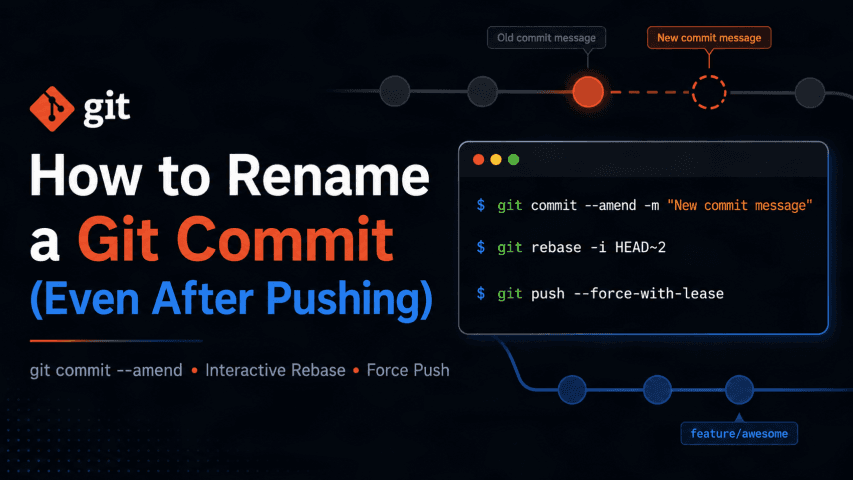
Mistyped a commit message? No worries. Git allows you to rename commit messages whether it's the latest commit or an older one.
This guide covers both scenarios.
Rename the Last Commit
If the commit you want to rename is the most recent one, simply amend the commit message.
Step 1: Update the commit message
git commit --amend -m "Your new commit message"
Step 2: Push the updated commit
If the commit has already been pushed to GitHub, you'll need to force-push the updated history.
git push --force-with-lease
Why
--force-with-leaseinstead of--force?
--force-with-leaseis safer because it prevents you from accidentally overwriting changes that someone else has pushed to the remote repository.
Rename an Older Commit
If the commit is not the latest one, use an interactive rebase.
Step 1: Start an interactive rebase
git rebase -i HEAD~5
Replace 5 with the number of recent commits that includes the commit you want to rename.
For example, if you want to rename the second-last commit:
git rebase -i HEAD~2
Step 2: Mark the Commit for Editing
Git will open your default editor with something like:
pick abc1234 Add authentication
pick def5678 Update README
Change the commit you want to rename from pick to reword.
reword abc1234 Add authentication
pick def5678 Update README
Save and close the editor.
Step 3: Update the Commit Message
Git will reopen your editor with the selected commit message.
Replace it with your new message, then save and close the editor.
Step 4: Complete the Rebase
If Git encounters conflicts, resolve them and continue:
git rebase --continue
If there are no conflicts, Git will finish automatically.
Step 5: Push the Updated History
If the renamed commit had already been pushed to GitHub, update the remote branch with:
git push --force-with-lease
Example
Suppose your commit history looks like this:
A ── B (Wrong commit message) ── C (Latest commit)
You want to rename B.
Run:
git rebase -i HEAD~2
Change:
pick B Wrong commit message
pick C Latest commit
To:
reword B Wrong commit message
pick C Latest commit
Save, edit the commit message, and finish the rebase.
Finally, push the updated history:
git push --force-with-lease
Summary
| Scenario | Command |
|---|---|
| Rename the latest commit | git commit --amend -m "New message" |
| Rename an older commit | git rebase -i HEAD~N |
| Push rewritten history | git push --force-with-lease |
Final Thoughts
Renaming commit messages is a common Git task. For the latest commit, git commit --amend is the quickest solution. For older commits, an interactive rebase gives you full control over your commit history.
When rewriting commits that have already been pushed, always prefer:
git push --force-with-lease
instead of:
git push --force
It's the safer option and helps prevent accidentally overwriting changes on the remote repository.
Share this article

Dabananda Mitra
Software Engineer specializing in scalable backend systems and minimal, effective API design.
Comments
Loading comments...
More Writings
How to Restore a Deleted GitHub Repository
Accidentally deleted a GitHub repository? Donot panic. In many cases, you can restore it directly from GitHub.
Read Article →WindowsHow to Kill a Process Using Port in Windows: Complete Guide
Learn how to find and kill a process using a specific port in Windows with netstat, tasklist, and taskkill commands. A practical guide for .NET and ASP.NET Core developers.
Read Article →.NETTop 500 .NET Interview Questions | Complete Preparation Guide
Preparing for a .NET developer interview? I collected 500 unique interview questions covering the most important areas of the .NET ecosystem. This is a useful revision resource for freshers and experienced .NET developers preparing for technical interviews. Save it, practice the questions category by category, and use it as a structured roadmap for your .NET interview preparation.
Read Article →