Git Workflow Notes — Stash, Cherry-Pick & Build Cleanup
Day to day usage of life saving git command in real life complex senario
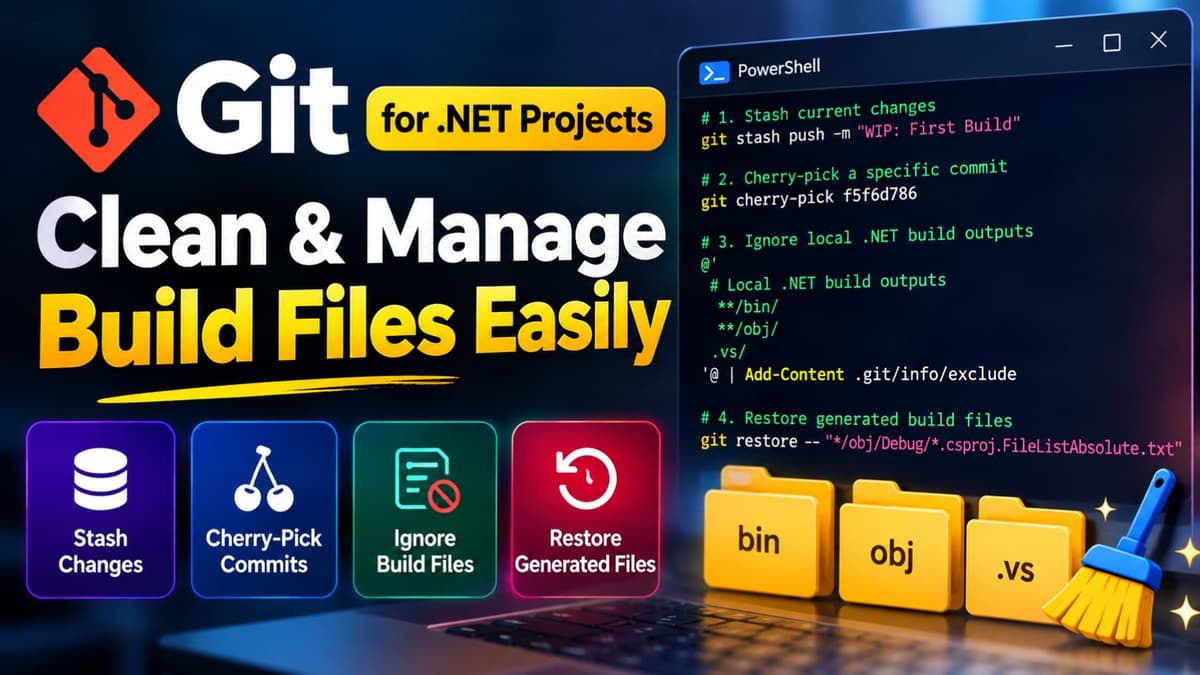
1. Stash current changes
git stash push -m "WIP: First Build"
Purpose: Temporarily saves tracked and staged changes and restores a clean working tree.
Usage: Run before switching branches or cherry-picking when you have uncommitted changes. Untracked files are not included by default.
To restore the stashed changes later:
git stash list
git stash pop
2. Cherry-pick a specific commit
git cherry-pick f5f6d786
Purpose: Applies the changes from the specified commit to your current branch without merging the entire source branch.
Usage: Switch to the intended target branch first and verify your working tree is clean.
If conflicts occur, resolve them and run:
git add <resolved-file>
git cherry-pick --continue
To cancel an in-progress cherry-pick:
git cherry-pick --abort
3. Ignore local .NET build outputs
@'

# Local .NET build outputs
**/bin/
**/obj/
.vs/
'@ | Add-Content .git/info/exclude
Purpose: Locally ignores matching untracked build files without changing the shared .gitignore or creating a commit.
Usage: Run from the repository root. Add these rules only once to avoid duplicates.
Note: This does not hide changes to files already tracked by Git.
4. Restore modified build-generated text files
git restore -- "*/obj/Debug/*.csproj.FileListAbsolute.txt"
Purpose: Restores matching tracked files to their committed versions, discarding local modifications.
Usage: Run after a build if these generated files appear as modified in Git status.
Warning: Any local changes to matching files will be lost. These files may become modified again after the next build.
5. Verify the working tree
git status --short
Shows staged, modified, and untracked files so you can verify the results before committing or pushing.
Share this article

Dabananda Mitra
Software Engineer specializing in scalable backend systems and minimal, effective API design.
Comments
Loading comments...
More Writings
How to Commit to Git with a Previous Date (Step-by-Step Guide)
Learn how to commit to Git with a previous date using VS Code. Set author and committer dates, understand Git date formats, and verify commit timestamps.
Read Article →GitHow to Switch Git Branches Without Losing Your Uncommitted Changes
Learn how to use git stash effectively to temporarily save uncommitted changes when you need to switch branches without losing your work.
Read Article →Server & DeploymentHow to Connect an HTTPS Frontend to an HTTP Backend on Vercel Without Mixed Content Errors
Deployed your Angular SPA to Vercel only to get 404s and Mixed Content blocks against your HTTP backend? Here is how to fix Angular’s nested output directory and build a zero-overhead streaming reverse proxy in Vercel to route your API securely.
Read Article →