How to Run Oracle Database XE on Docker and Connect with PL/SQL Developer on Windows
A complete step-by-step guide to running Oracle Database XE in Docker and connecting it with PL/SQL Developer on Windows 11.
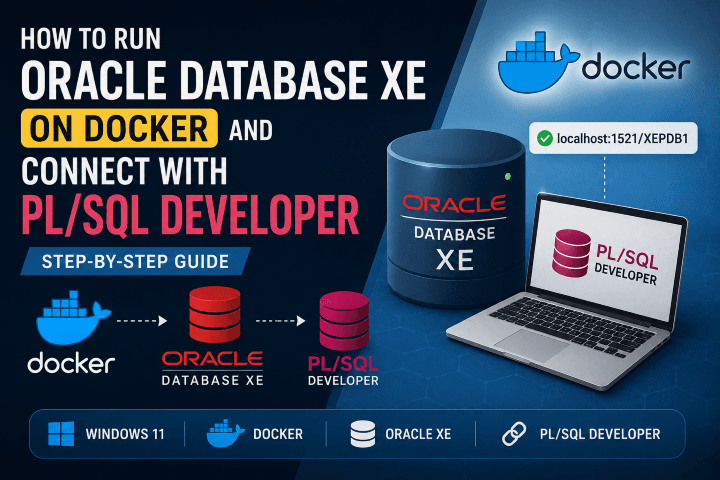
How to Run Oracle Database XE on Docker and Connect with PL/SQL Developer on Windows 11
Oracle Database is one of the most popular enterprise databases. Instead of installing Oracle directly on Windows, we can run it inside Docker, making installation much easier and cleaner.
In this guide, you'll learn how to:
- Install Oracle Database XE using Docker
- Connect to the database using PL/SQL Developer
- Create your own database user
- Fix the common OCI initialization error
Prerequisites
Before starting, make sure you have:
- Windows 11
- Docker Desktop installed and running
- Internet connection
- PL/SQL Developer installer
Architecture
Windows 11
│
├── Docker Desktop
│      │
│      └── Oracle Database XE
│             │
│             ├── Port 1521 (Database)
│             └── Port 5500 (Enterprise Manager)
│
└── PL/SQL Developer
        │
        └── localhost:1521
Step 1: Verify Docker Installation
Open PowerShell.
Run:
docker --version
Example:
Docker version 28.x.x
Now verify Docker is running.
docker ps
If Docker is working, you'll see something similar to:
CONTAINER ID IMAGE COMMAND CREATED STATUS PORTS NAMES
An empty list is perfectly fine.
Step 2: Pull Oracle Database XE Image
We'll use the excellent Oracle XE image maintained by gvenzl.
docker pull gvenzl/oracle-xe:21
This image is approximately 2–3 GB, so downloading may take a few minutes.
Step 3: Create Oracle Database Container
Run:
Command Prompt
docker run -d ^
--name oracle-xe ^
-p 1521:1521 ^
-p 5500:5500 ^
-e ORACLE_PASSWORD=oracle ^
-v oracle-data:/opt/oracle/oradata ^
gvenzl/oracle-xe:21
PowerShell
docker volume create oracle-data

docker run -d `
--name oracle-xe `
-p 1521:1521 `
-p 5500:5500 `
-e ORACLE_PASSWORD=oracle `
-v oracle-data:/opt/oracle/oradata `
gvenzl/oracle-xe:21
What do these options mean?
| Option | Description |
|---|---|
-d | Run container in background |
--name oracle-xe | Container name |
-p 1521:1521 | Oracle Database port |
-p 5500:5500 | Enterprise Manager port |
ORACLE_PASSWORD | Password for SYSTEM and SYS |
-v oracle-data | Persist database files |
Step 4: Wait Until Database Starts
Check running containers.
docker ps
If the container is running, check its logs.
docker logs oracle-xe
Wait until you see:
DATABASE IS READY TO USE!
The first startup usually takes 3–5 minutes.
Step 5: Verify Database Inside the Container
Open a shell inside the container.
docker exec -it oracle-xe bash
Now connect to Oracle.
sqlplus system/oracle@XEPDB1
Run:
SELECT * FROM dual;
Expected output:
X
-
X
Exit SQL*Plus.
exit
Step 6: Install Oracle Instant Client
PL/SQL Developer requires Oracle Instant Client.
Download:
- Oracle Instant Client Basic Package
Extract it to:
C:\oracle\instantclient_23_0
Important: Choose the Correct Bit Version
This is where many people get stuck.
Your Oracle Instant Client must match the bit version of PL/SQL Developer.
| PL/SQL Developer | Oracle Instant Client |
|---|---|
| 32-bit | 32-bit |
| 64-bit | 64-bit |
If they don't match, you'll get this error:
Initialization error

Could not initialize OCI.DLL

Make sure you have the 32 bits Oracle Client installed.
How to check?
If PL/SQL Developer is installed in
C:\Program Files (x86)\
then install the 32-bit Oracle Instant Client.
If it's installed in
C:\Program Files\
install the 64-bit Oracle Instant Client.
Step 7: Configure PL/SQL Developer
Open PL/SQL Developer.
Go to:
Tools
→ Preferences
→ Oracle
Set the OCI Library path.
Example:
C:\oracle\instantclient_23_0\oci.dll
Restart PL/SQL Developer.
Step 8: Connect to Oracle Database
Use the following credentials.
| Field | Value |
|---|---|
| Username | system |
| Password | oracle |
| Database | localhost:1521/XEPDB1 |
| Connection | Normal |
Click Connect.
Step 9: Create Your Own User
It's not recommended to work using the SYSTEM account.
Create your own user.
CREATE USER debu IDENTIFIED BY password;
Grant privileges.
GRANT CONNECT, RESOURCE TO debu;
Allow unlimited tablespace.
ALTER USER debu QUOTA UNLIMITED ON USERS;
Reconnect using:
| Field | Value |
|---|---|
| Username | debu |
| Password | password |
| Database | localhost:1521/XEPDB1 |
Step 10: Test Everything
Create a table.
CREATE TABLE employee
(
    id NUMBER PRIMARY KEY,
    name VARCHAR2(100)
);
Insert data.
INSERT INTO employee
VALUES (1, 'Debu');
Commit.
COMMIT;
Query the table.
SELECT *
FROM employee;
Expected output:
ID    NAME
--------------
1     Debu
Congratulations! Your Oracle database is working.
Useful Docker Commands
Start Oracle
docker start oracle-xe
Stop Oracle
docker stop oracle-xe
Restart Oracle
docker restart oracle-xe
View Logs
docker logs oracle-xe
Open Bash
docker exec -it oracle-xe bash
Remove Container
docker rm -f oracle-xe
Remove Image
docker rmi gvenzl/oracle-xe:21
Common Errors
OCI.DLL Initialization Error
Error:
Could not initialize OCI.DLL
Reason:
PL/SQL Developer and Oracle Instant Client have different architectures (32-bit vs 64-bit).
Solution:
Install the Oracle Instant Client that matches your PL/SQL Developer version.
Database Is Not Ready
If login fails immediately after starting the container:
Run:
docker logs oracle-xe
Wait until:
DATABASE IS READY TO USE!
Then reconnect.
Wrong Username or Password
Make sure you're using the password specified in:
-e ORACLE_PASSWORD=oracle
If you changed it, use that password instead.
Connection Summary
| Setting | Value |
|---|---|
| Host | localhost |
| Port | 1521 |
| Service Name | XEPDB1 |
| Username | debu |
| Password | password |
Conclusion
Using Docker to run Oracle Database XE keeps your development environment clean, portable, and easy to manage. By combining Docker with PL/SQL Developer, you get a powerful local Oracle development setup without installing Oracle directly on Windows.
Remember to:
- Use Docker volumes to persist your data.
- Match the Oracle Instant Client architecture (32-bit or 64-bit) with PL/SQL Developer.
- Create your own database users instead of working with the SYSTEM account.
Happy coding!
Share this article

Dabananda Mitra
Software Engineer specializing in scalable backend systems and minimal, effective API design.
Comments
Loading comments...
More Writings
Redis Caching: The Architectural Change That Beats a Hundred Code Optimizations
A junior engineer's first real encounter with Redis caching — and why sometimes the biggest performance win isn't smarter code, it's less work.
Read Article →WindowsHow to Kill a Process Using Port in Windows: Complete Guide
Learn how to find and kill a process using a specific port in Windows with netstat, tasklist, and taskkill commands. A practical guide for .NET and ASP.NET Core developers.
Read Article →.NETTop 500 .NET Interview Questions | Complete Preparation Guide
Preparing for a .NET developer interview? I collected 500 unique interview questions covering the most important areas of the .NET ecosystem. This is a useful revision resource for freshers and experienced .NET developers preparing for technical interviews. Save it, practice the questions category by category, and use it as a structured roadmap for your .NET interview preparation.
Read Article →