How to Kill a Process Using Port in Windows: Complete Guide
Learn how to find and kill a process using a specific port in Windows with netstat, tasklist, and taskkill commands. A practical guide for .NET and ASP.NET Core developers.
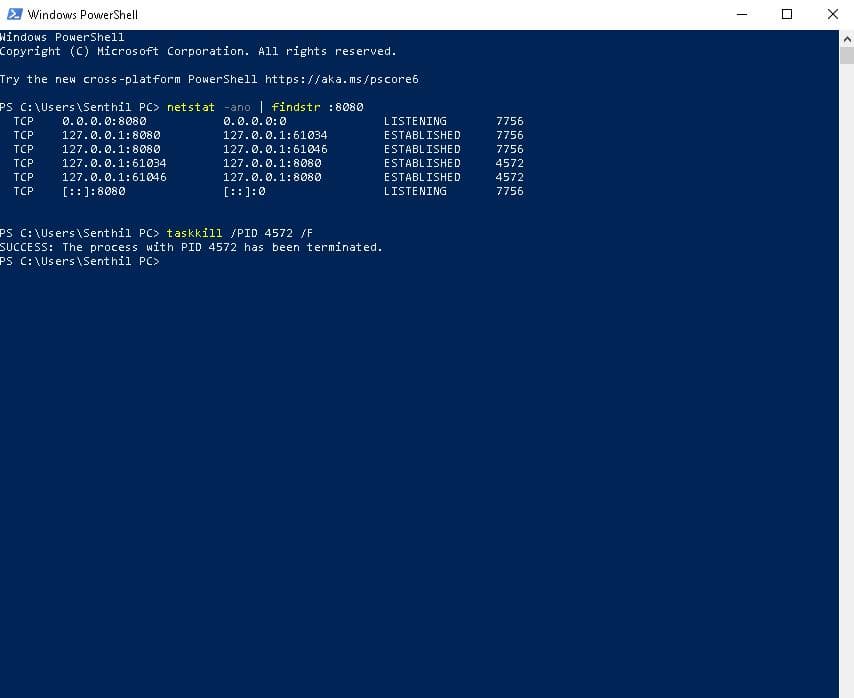
How to Kill a Process Using Port in Windows: Complete Guide
Have you ever started your ASP.NET Core application and encountered an error saying that the port is already in use?
If you are a .NET developer working with ASP.NET Core, Web API, or other local development projects, you may frequently face this issue when a previous application instance is still running in the background.
In this guide, you will learn how to find and kill a process using a specific port in Windows with three simple commands:
netstat -anotasklisttaskkill
By the end of this tutorial, you will know how to identify the process occupying a port and terminate it safely using the Windows Command Prompt.
Table of Contents
- Why Do You Need to Kill a Process?
- Step 1: Find the Process Using a Port
- Step 2: Identify the Process Name
- Step 3: Kill the Process
- Complete Example
- How to Kill a Process Forcefully
- Common Errors and Solutions
- Important Safety Tips
- Conclusion
- Frequently Asked Questions
Why Do You Need to Kill a Process?
When running a local application, the application usually listens on a specific port.
For example, your ASP.NET Core application might be running on:
https://localhost:5259
If the application crashes, closes unexpectedly, or remains running in the background, the port may still be occupied by the existing process.
When you try to start the application again, you might receive an error similar to:
Unable to bind to https://localhost:5259
Or:
Address already in use
To resolve this issue, you can find the process using port 5259 and terminate it.
Note: A port being occupied does not necessarily mean the process should be terminated. Always verify which application owns the port before killing it.
Step 1: Find the Process Using a Port
The first step is to identify the Process ID (PID) associated with the port.
Open Command Prompt (CMD) and run the following command:
netstat -ano | findstr :5259
Understanding the Command
Let's break down the command:
netstat -ano
netstat: Displays active network connections and listening ports.-a: Displays all active connections and listening ports.-n: Displays addresses and port numbers in numerical form.-o: Displays the Process ID (PID) associated with each connection.
The following part filters the output:
| findstr :5259
|: Pipes the output of one command to another.findstr: Searches for matching text.:5259: Filters the output to lines containing port5259.
Example Output
TCP    0.0.0.0:5259      0.0.0.0:0      LISTENING       22220
TCP    [::]:5259         [::]:0         LISTENING       22220
The last column contains the Process ID:
PID: 22220
Now that we know the PID, we can identify the process.
Step 2: Identify the Process Name
After finding the Process ID, use the tasklist command to check which application or executable is associated with it.
Run:
tasklist /FI "PID eq 22220"
Understanding the Command
tasklist
Displays a list of currently running processes on Windows.
The following filter:
/FI "PID eq 22220"
Filters the process list to show only the process whose PID equals 22220.
/FI: Applies a filter.PID: Specifies the Process ID field.eq: Means equal to.22220: The PID you found usingnetstat.
Example Output
Image Name      PID       Session Name    Session#    Mem Usage
dotnet.exe      22220     Console         1           120,000 K
In this example, the process is:
dotnet.exe
Before terminating it, confirm that it belongs to your application and is safe to stop.
Step 3: Kill the Process
Once you have verified the Process ID, you can terminate the process using the taskkill command.
Run:
taskkill /PID 22220
Understanding the Command
taskkill: Terminates one or more running processes./PID: Specifies the Process ID of the process to terminate.22220: The PID you want to terminate.
Example Output
SUCCESS: Sent termination signal to process with PID 22220.
The exact output may vary depending on the process and Windows version.
After the process has been terminated, you can try running your application again.
Important: The default
taskkill /PIDcommand does not always terminate a process immediately. If the process requires forceful termination, use the/Foption only after confirming that it is safe to do so.
Complete Example
Here is the complete workflow for finding and killing a process using port 5259.
Step 1: Find the PID
netstat -ano | findstr :5259
Example:
TCP 0.0.0.0:5259 0.0.0.0:0 LISTENING 22220
PID:
22220
Step 2: Identify the Process
tasklist /FI "PID eq 22220"
Example:
dotnet.exe 22220
Step 3: Kill the Process
taskkill /PID 22220
Step 4: Verify the Port
After terminating the process, check whether the port is still in use:
netstat -ano | findstr :5259
If no matching output is returned, there may no longer be a process listening on that port.
Note: A port can be reused by a different process, and the absence of output from this command does not guarantee that every possible connection involving the port has disappeared.
How to Kill a Process Forcefully
Sometimes a process may not terminate using the standard taskkill command.
In such cases, you can use the /F option:
taskkill /PID 22220 /F
What Does /F Mean?
/F: Forcefully terminates the specified process.
Example
taskkill /PID 22220 /F
This command requests forceful termination of the process with PID 22220.
Warning
Forceful termination can cause:
- Unsaved data to be lost.
- Incomplete file operations.
- Database transactions to be interrupted.
- Temporary files or resources to remain in an unexpected state.
Use forceful termination only when necessary and when you have verified that terminating the process is safe.
Common Errors and Solutions
1. ERROR: The process could not be terminated
You might encounter an error if you do not have sufficient permissions or if the process cannot be terminated in its current state.
Solution
Try opening Command Prompt as Administrator:
- Open the Start Menu.
- Search for
cmd. - Right-click Command Prompt.
- Select Run as administrator.
- Run the command again.
taskkill /PID 22220
Administrator privileges do not guarantee that every process can be terminated. Some processes are protected or have other restrictions.
2. The Port Is Still in Use
If the port remains occupied after running taskkill, verify the process again:
netstat -ano | findstr :5259
Then check the PID:
tasklist /FI "PID eq 22220"
Possible reasons include:
- The process did not terminate.
- A different process is using the same port.
- The application restarted automatically.
- The PID has changed.
Always check the current PID rather than assuming it remains the same.
3. No Output from netstat
If the command returns no output:
netstat -ano | findstr :5259
Possible explanations include:
- No matching connection or listening entry was found.
- The application is not currently listening on that port.
- The port number is incorrect.
- The service is listening on a different port or address.
Verify your application's configured port and check the command again.
Alternative: Kill a Process by Its Name
Windows also allows you to terminate processes by their image name.
For example:
taskkill /IM dotnet.exe
Understanding the Command
/IM: Specifies the image name of the process.dotnet.exe: The executable name to terminate.
Important Warning
This command can terminate multiple processes with the same image name.
For example, several .NET applications may be running under dotnet.exe. Killing all of them could interrupt applications unrelated to your current project.
For a targeted termination, using the specific PID is generally more precise:
taskkill /PID 22220
Useful Command Reference
| Command | Purpose |
|---|---|
netstat -ano | Displays network connections, listening ports, and PIDs. |
netstat -ano | findstr :5259 | Finds entries containing port 5259. |
tasklist | Lists running processes. |
tasklist /FI "PID eq 22220" | Finds the process with PID 22220. |
taskkill /PID 22220 | Requests termination of the process with PID 22220. |
taskkill /PID 22220 /F | Forcefully terminates the process. |
taskkill /IM dotnet.exe | Terminates processes matching dotnet.exe. |
Important Safety Tips
Before terminating a process, keep the following points in mind:
- Verify the PID: Make sure the PID belongs to the application you want to stop.
- Avoid killing system processes: Terminating critical Windows processes may affect system stability.
- Prefer graceful shutdown: If possible, stop your application through its normal shutdown mechanism.
- Use
/Fcarefully: Forceful termination may result in data loss or incomplete operations. - Check permissions: Some processes require administrative privileges.
- Recheck the port: After termination, verify the current port state.
Quick Tip for ASP.NET Core Developers
When working on an ASP.NET Core Web API project, you may encounter a port conflict after stopping or restarting your application.
For example, if your API is configured to run on:
https://localhost:5259
You can quickly investigate the port with:
netstat -ano | findstr :5259
Then identify the process:
tasklist /FI "PID eq 22220"
Finally, if the process is confirmed to be your application and can safely be stopped:
taskkill /PID 22220
This workflow helps you troubleshoot local development port conflicts without having to restart your entire computer.
Conclusion
Knowing how to find and kill a process using a port is a useful skill for Windows and .NET developers.
The three main commands covered in this guide are:
netstat -ano | findstr :5259
tasklist /FI "PID eq 22220"
taskkill /PID 22220
The overall process is simple:
- Find the PID associated with the port.
- Identify the process using that PID.
- Verify that it is safe to terminate.
- Kill the process.
- Confirm the port's current state.
With these commands, you can efficiently troubleshoot common port-related issues during local application development.
Frequently Asked Questions (FAQ)
1. How do I kill a process using a port in Windows?
First, find the PID using:
netstat -ano | findstr :5259
Then identify the process:
tasklist /FI "PID eq 22220"
Finally, terminate it:
taskkill /PID 22220
Replace 5259 and 22220 with the port number and PID relevant to your situation.
2. What is the purpose of netstat -ano?
The netstat -ano command displays active network connections, listening ports, numerical addresses, and associated Process IDs.
3. How do I find which process is using a specific port?
Use:
netstat -ano | findstr :PORT_NUMBER
For example:
netstat -ano | findstr :5259
4. What is the difference between taskkill and taskkill /F?
taskkill /PID requests process termination, while taskkill /PID /F requests forceful termination.
Forceful termination should be used cautiously.
5. Can I kill a process by name instead of PID?
Yes. You can use:
taskkill /IM dotnet.exe
However, this may affect multiple processes with the same executable name.
6. Do I need Administrator privileges to kill a process?
Not always. Some processes can be terminated without administrator privileges, while others require elevated permissions.
Share this article

Dabananda Mitra
Software Engineer specializing in scalable backend systems and minimal, effective API design.
Comments
Loading comments...
More Writings
Top 500 .NET Interview Questions | Complete Preparation Guide
Preparing for a .NET developer interview? I collected 500 unique interview questions covering the most important areas of the .NET ecosystem. This is a useful revision resource for freshers and experienced .NET developers preparing for technical interviews. Save it, practice the questions category by category, and use it as a structured roadmap for your .NET interview preparation.
Read Article →.NETProject Template: ASP.NET Core Web Api Modular Monolith
Tired of doing the starting configuration again and again for new projects? Here is the solution. Use this Modular Monolith ASP.NET Core Web Api starting template and directly jump into main code.
Read Article →Git & GitHubHow to Restore a Deleted GitHub Repository
Accidentally deleted a GitHub repository? Donot panic. In many cases, you can restore it directly from GitHub.
Read Article →